



















































Search icon CANCEL
Subscription
0
Cart icon
Your Cart (0 item)
Close icon
You have no products in your basket yet
Save more on your purchases! discount-offer-chevron-icon
Savings automatically calculated. No voucher code required.
Arrow left icon
Explore Products
Best Sellers
New Releases
Books
Events
Videos
Audiobooks
Packt Hub
Free Learning
Arrow right icon
timer SALE ENDS IN
0 Days
:
00 Hours
:
00 Minutes
:
00 Seconds
Arrow up icon
GO TO TOP
SQL Server 2012 with PowerShell V3 Cookbook

You're reading from   SQL Server 2012 with PowerShell V3 Cookbook Increase your productivity as a DBA, developer, or IT Pro, by using PowerShell with SQL Server to simplify database management and automate repetitive, mundane tasks

Arrow left icon
Product type Paperback
Published in Oct 2012
Publisher Packt
ISBN-13 9781849686464
Length 634 pages
Edition 1st Edition
Concepts
Arrow right icon
Author (1):
Arrow left icon
Donabel Santos Donabel Santos
Author Profile Icon Donabel Santos
Donabel Santos
Arrow right icon
View More author details
Toc

Table of Contents (15) Chapters Close

Preface 1. Getting Started with SQL Server and PowerShell FREE CHAPTER 2. SQL Server and PowerShell Basic Tasks 3. Basic Administration 4. Security 5. Advanced Administration 6. Backup and Restore 7. SQL Server Development 8. Business Intelligence 9. Helpful PowerShell Snippets A. SQL Server and PowerShell CheatSheet B. PowerShell Primer C. Resources
D. Creating a SQL Server VM Index

Discovering SQL Server services

In this recipe, we enumerate all SQL Server services and list their status.

Getting ready

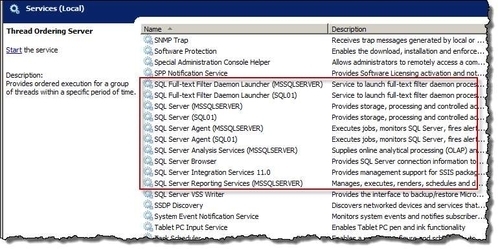
Check which SQL Server services are installed in your instance. Go to Start | Run and type services.msc. You should see a screen similar to this:
Getting ready

How to do it...

Let's assume you are running this script on the server box.

  1. Open the PowerShell console by going to Start | Accessories | Windows PowerShell | Windows PowerShell ISE.
  2. Add the following code and execute it:
    Import-Module SQLPS
    
    #replace KERRIGAN with your instance  name
    $instanceName = "KERRIGAN"  
    $managedComputer = New-Object 'Microsoft.SqlServer.Management.Smo.Wmi.ManagedComputer' $instanceName
    
    #list services        
    $managedComputer.Services | 
    Select Name, Type, Status, DisplayName | 
    Format-Table -AutoSize

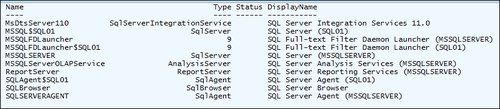
    Your result will look similar to the one shown in the following screenshot:
    How to do it...

    Items listed on your screen will vary depending on the features installed and running in your instance.

  3. Confirm...
lock icon The rest of the chapter is locked
CONTINUE READING
83
Tech Concepts
36
Programming languages
73
Tech Tools
Icon Unlimited access to the largest independent learning library in tech of over 8,000 expert-authored tech books and videos.
Icon Innovative learning tools, including AI book assistants, code context explainers, and text-to-speech.
Icon 50+ new titles added per month and exclusive early access to books as they are being written.
SQL Server 2012 with PowerShell V3 Cookbook
Register for a free Packt account to unlock a world of extra content!
A free Packt account unlocks extra newsletters, articles, discounted offers, and much more. Start advancing your knowledge today.
Unlock this book and the full library FREE for 7 days
Get unlimited access to 7000+ expert-authored eBooks and videos courses covering every tech area you can think of
Renews at €18.99/month. Cancel anytime
Modal Close icon
Modal Close icon